Anúncios
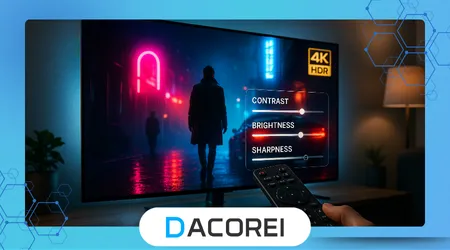
Smart TV picture quality is essential for enjoying movies, games, and sports with clarity that truly enhances your experience.
Modern displays offer impressive performance, but many users do not take advantage of the settings that unlock maximum visual quality.
This guide explains the steps that improve color accuracy, brightness balance, motion clarity, and streaming sharpness on any screen.
Small adjustments can fix common problems like washed-out colors, dark scenes missing detail, and grainy images from streaming apps.
You will learn how to optimize settings, cables, streaming quality, and room lighting to get the best results possible.
Anúncios
Understanding how image processing works inside your Smart TV will help you make more informed choices and create a richer viewing experience at home.
1. Start with the Right Picture Mode
Movie mode is often the most accurate option because it reduces artificial brightness and avoids oversaturated colors that distort realistic images.
Sports mode increases motion smoothness, but it may exaggerate brightness and add unwanted noise during fast scenes.
Game mode reduces input lag, improving responsiveness for gamers, but it sometimes sacrifices minor visual enhancements for speed.
Avoid Dynamic or Vivid mode, because these profiles push brightness too high and degrade detail in both dark and bright scenes.
If your TV offers Filmmaker Mode, enable it to match the director’s original intent and reduce overly aggressive processing features.
++How to Turn an Old TV Into a Smart TV
2. Improve Color and Contrast Calibration
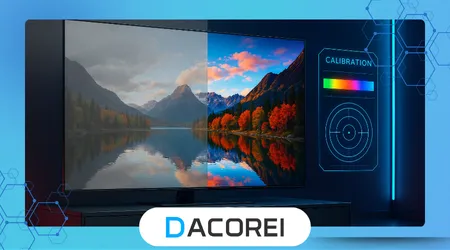
Accurate white balance ensures that characters’ skin tones look natural without appearing too orange or too blue.
Most Smart TVs offer simple calibration tools, but professional calibration can deliver more precise results for enthusiasts willing to invest in accuracy.
For more scientific guidance on adjusting brightness, contrast, and gamma levels, the guidelines provided by RTINGS are a helpful reference for beginners and advanced users alike.
Contrast ratio plays a major role in depth perception, so increasing contrast gradually until bright areas retain detail is often the best approach.
Avoid maximum brightness during nighttime viewing; high luminance causes eye strain and hides shadow details that are crucial in dark movies.
3. Control Lighting Conditions in the Room
Reflections reduce Smart TV picture clarity by washing out colors and covering dark scenes with mirror-like glare.
Whenever possible, avoid placing the TV directly opposite windows or bright lamps that bounce light onto the screen.
The U.S. Department of Energy recommends warm and dimmable lights to maintain comfort while minimizing the impact on screen visibility.
Bias lighting, a soft light behind the screen, reduces eye fatigue and improves perceived contrast in a dark environment.
Heavy curtains or blackout shades make daytime viewing sharper because the screen does not fight unwanted sunlight.
++Netflix vs Prime Video: Which One Is Worth It in 2025?
4. Optimize Streaming Quality and Connectivity
Streaming apps reduce image quality when internet speed drops, introducing compression artifacts that appear as blocky or blurry spots.
Always choose the highest resolution available in each app’s settings, ensuring that your Smart TV receives true HD, 4K, or HDR streams.
For updated network performance guidelines, you may reference the recommendations from Netflix Help Center to improve bandwidth capacity for UHD content.
A wired Ethernet connection is more stable than Wi-Fi, and it helps prevent stutters and sudden quality drops during peak usage hours.
If Wi-Fi is required, placing the router closer to the TV or using a mesh network improves signal consistency for better picture fidelity.
5. Use High-Quality Cables and Proper HDMI Ports
Cheap or outdated cables limit the resolution and refresh rate supported by your Smart TV.
HDMI 2.1 cables ensure compatibility with features such as Variable Refresh Rate and 4K at 120Hz, especially important for gaming consoles.
Select the correct HDMI input labeled “Enhanced” or “Game,” which activates maximum bandwidth modes that process video more efficiently.
Below is a quick reference comparing HDMI versions commonly found in homes:
| HDMI Version | Maximum Resolution | Best Use Case |
|---|---|---|
| HDMI 1.4 | 1080p 60Hz | Older TVs and devices |
| HDMI 2.0 | 4K 60Hz | Streaming and basic gaming |
| HDMI 2.1 | 4K 120Hz / 8K | Next-gen gaming and high-end home theater |
If your Smart TV supports eARC, use that port to connect soundbars for higher-quality audio without sacrificing picture settings.
6. Adjust Motion Settings Carefully
Motion smoothing can remove blur, but it creates an unnatural “soap opera effect” in movies and cinematic series.
Sports and animation benefit more from motion enhancements because faster movement needs extra clarity to stay visually consistent.
Reducing judder settings helps fix shaky camera pans without causing artificial motion issues in slower scenes.
If the TV offers a “Cinematic Motion” or “Filmmaker” adjustment, try it to strike the right balance between fluidity and artistic authenticity.
Different brands label these settings differently, so experimenting with trial and error is often the fastest way to find your preference.
++Best Free News Channels on Streaming
Conclusion
Smart TV picture quality depends as much on user settings as on the technology built inside the screen, and careful adjustments make a dramatic difference.
You now have practical strategies that elevate visual impact with better colors, balanced brightness, and improved streaming fidelity.
Even free upgrades such as changing picture mode or adjusting room lighting unlock a more immersive viewing experience without expensive equipment.
Take the time to explore these configurations slowly, because every step that aligns the image to your taste enhances all future entertainment.
FAQ
1. What picture mode gives the most realistic image?
Movie or Filmmaker Mode typically provides the most accurate colors and intended artistic presentation.
2. Do I need professional calibration for good picture quality?
Not always, but professionals deliver the most precise results for enthusiasts with high-end screens.
3. Why does my 4K stream look blurry sometimes?
Low bandwidth triggers aggressive compression, reducing sharpness even when using a 4K-capable display.
4. Should I disable motion smoothing for films?
Yes, if you prefer a traditional cinematic look without the soap opera effect.
5. Do better HDMI cables improve image quality?
Higher-spec cables unlock advanced features like higher refresh rates and HDR stability.