Anúncios
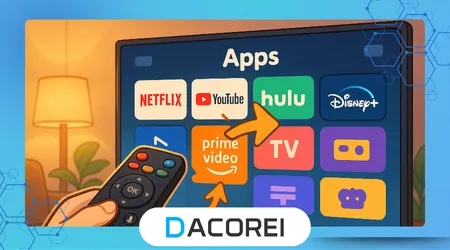
Smart TV apps are transforming home entertainment by giving viewers instant access to streaming platforms, games, news services, and everyday tools directly on the television screen.
Modern users want to expand their content options without complicated installations, making simple app management essential for an enjoyable Smart TV experience.
This article will explain clear steps for downloading, updating, and organizing apps, ensuring compatibility with different TV brands and operating systems.
Readers will learn how app stores work inside Smart TVs and how to solve the most common installation errors with practical solutions.
Knowing the right methods helps users avoid frustration and unlock the full potential of their devices through efficient app control.
Anúncios
The goal of this guide is to empower every household to enjoy smooth navigation and smarter entertainment through intuitive Smart TV customization.
Understanding Smart TV App Stores
Every Smart TV includes a dedicated app marketplace where users can download apps created specifically for the device’s operating system, providing a secure platform for expanding features.
Manufacturers curate these app stores to ensure safety and compatibility, which prevents harmful software installation and maintains smooth performance across the television’s hardware.
Different brands use unique operating systems, meaning app availability varies; for example, Samsung uses Tizen while LG relies on webOS, so not all apps appear on every device.
Users should first identify their TV model and system to understand which apps are available and what limitations exist before searching for installation instructions.
Many televisions require an active Wi-Fi connection and a logged-in manufacturer account, which allows users to download apps and sync preferences across multiple devices.
Assistentes de voz na TV: vale a pena usar?
How to Install Apps on a Samsung Smart TV
Samsung Smart TVs rely on the Smart Hub interface, which provides a user-friendly layout where apps are easy to browse and install.
To search and download apps on Samsung devices, users simply open Smart Hub, select the Apps section, choose their desired app, and click Install to automatically add it to the home screen.
Users who need more details about Samsung’s ecosystem can visit the official support from Samsung while exploring different model functionalities in a trustworthy and guided way.
Some older Samsung models have limited app support, particularly those released before major software updates, meaning streaming giants may eventually discontinue compatibility.
If an app stops working due to compatibility restrictions, users can still try screen mirroring from a phone or streaming stick as a temporary alternative to continue using that service.
++Séries e programas para assistir com a família
Installing Apps on LG Smart TVs Using webOS
LG Smart TVs require users to open the LG Content Store, a central library that includes streaming platforms, sports apps, music tools, and several recommended local services.
To install apps, users choose LG Content Store on the home menu, search for an app, click Install, and wait as the download automatically places the icon in the launcher bar.
For additional support and verification of software updates, users can check the documentation provided by LG Electronics to ensure the system remains optimized for new app integrations.
Some LG models support voice commands, meaning users can ask their remote to install apps or launch them instantly without navigating manually through menus.
Regular system updates keep webOS performing well, but users must ensure enough storage is available to prevent installation delays or mid-download failures, particularly with large streaming apps.
Managing Apps on Android TV and Google TV
Android TV and Google TV offer familiar experiences for Android phone users, as both systems use Google Play Store to install apps across mobile and television devices.
To add a new app, users open Google Play Store, search for the app name, and click Install, enabling the television to sync services with the same Google account used on smartphones.
O Google TV Help Center provides verified guidance on storage, updates, and account management that supports new users facing first-time installation challenges.
Some Android TV remotes include a dedicated Google Assistant button, which allows users to quickly search for apps using voice commands instead of manual typing.
Because Android systems support side-loading, advanced users may install apps outside the Play Store, but security risks make it recommended only for trusted and verified sources.
Comparing TV Brands and Their App Support
Smart TV performance varies widely based on brand, operating system, update frequency, and app ecosystem maturity, influencing which apps users can enjoy and how stable they run.
Some brands deliver faster updates, while others offer more niche content from local service providers, creating different strengths depending on each household’s entertainment preferences.
Users may compare their TV with others before purchasing new apps or renewing streaming subscriptions to ensure compatibility remains strong for long-term use.
Below is a comparison of major Smart TV platforms and their app environments, helping users evaluate future device upgrades or installation decisions.
| Brand / OS | App Store Name | Voice Assist Support | App Variety | Best Known For |
|---|---|---|---|---|
| Samsung / Tizen | Smart Hub | Sim | Very Wide | Global streaming coverage |
| LG / webOS | LG Content Store | Sim | Medium-Wide | Fast interface and sports apps |
| Google / Android TV | Google Play Store | Sim | Very Wide | App flexibility and syncing |
| Amazon / Fire TV | Amazon Appstore | Sim | Médio | Budget-friendly streaming focus |
| Roku | Roku Channel Store | Limitado | Wide | Easy-to-use interface |
Troubleshooting Common Installation Issues
Installation failures often occur because of outdated software, insufficient storage, or unstable internet connections, affecting app performance and preventing successful downloads.
Users should verify speed and connectivity by rebooting the router or changing Wi-Fi frequency bands, especially when large apps require stable data transfer to complete installation.
Some apps disappear because developers withdraw support for older operating systems, which forces users to look for alternative access methods like streaming devices or phone casting.
Clearing cache and deleting rarely used apps can free storage, but Smart TVs with very limited memory might require external devices to maintain functioning app ecosystems.
If issues persist even after troubleshooting, contacting manufacturer support remains the safest method for diagnosing hardware restrictions and ensuring devices stay compatible with core media platforms.
Como transformar uma TV antiga em uma Smart TV
Conclusão
Understanding how Smart TV apps function allows users to freely customize entertainment features and enjoy content that matches their lifestyle without technical frustrations.
Following brand-specific instructions ensures faster downloads and better system performance, reducing the risk of app crashes or connection failures that interrupt viewing experiences.
Regular software updates help prevent compatibility problems while maintaining smooth performance, particularly for streaming services that frequently add advanced functionality.
By preparing the right setup from the start, every household can embrace smarter entertainment and unlock full Smart TV capabilities with the confidence to install new apps anytime.
Perguntas frequentes
1. How do I install apps on any Smart TV?
Open the TV’s app store, search for the desired application, select Install, and ensure you are connected to the internet with enough storage available.
2. Why are some apps missing from my Smart TV?
Different brands use unique operating systems, so certain apps may not be supported on older devices or specific manufacturers.
3. Do Smart TVs require updates for new apps?
Yes, software updates ensure compatibility and security, which helps the system recognize newer apps and features.
4. Can I remove pre-installed apps?
Some pre-installed apps cannot be deleted, but users can hide them from the menu to keep the interface organized.
5. What if my TV storage is full?
Delete unused apps or clear cache, and if possible, connect external storage or consider a streaming stick for additional space.